Introduction
In project management, especially in large-scale projects such as construction, planning and scheduling are the key to successful project execution; one of the most popular and important techniques used in project scheduling is the critical path method (CPM).
Need an owner-ready critical path? Our Primavera P6 scheduling services build and review CPM logic to USACE, VA and DOT specs.
Primavera P6 is one of the main software tools used in project management. It shows the project team the critical path so they can see which activities drive the finish date.
This article will not only provide an in-depth understanding of the concept of the critical path method, its importance in construction project management, and how to analyze critical paths using Primavera P6 but also explore several critical paths a project can have.
What is Critical Path?
The Critical Path Method (CPM) is a project management technique used to determine the sequence of activities that define the minimum time required to complete a project.
The Critical Path represents the longest chain of activities that dictates tasks that must be completed for the project to finish on time; these tasks have no ‘’float” or “slack’’ time, which means there is no room for delay in these tasks without affecting overall project duration.
To understand this better, let us say we are constructing a building. We have some activities such as laying the foundation, framing, roofing, and MEP work, some of these activities depend on the completion of others, while other activities can be done side by side for example, you can’t start framing unless the foundation is finished, on the other side plumbing and electrical works might work in the same time.
If we chart out all the dependencies and timelines, we will get the critical path as the sequence of activities that takes the longest to complete. Any delay in these tasks will push the entire project beyond its deadline, making it ‘’critical’’ to the overall project schedule.
So, exploring and understanding CPM and scheduling it in a project, and managing it is important for effectively dealing with time and resources, especially when delays can lead to contractual penalties.
Critical Path Analysis
Critical Path Analysis (CPA) in Primavera P6 starts with creating a project schedule with all relationships between tasks and calculating the project timeline. Now, Primavera P6 automatically identifies critical paths, enabling the project team to recognize activities that have a greater effect on the project completion date.
Now, let us know how to analyze the critical path using Primavera P6.
Step 1: Define Project Activities & Establish Dependencies Between Them
First, add all project activities in Primavera P6 to add new activity.
From the Edit Toolbar, click on the (+) icon, and you will see a new activity added.
Enter activity ID, name, and duration.

Next, create dependencies between activities
Select an activity for which you want to define a relationship.
Go to the “Relationship” tab.
You will have two windows, “Predecessor” and “Successor.” Click “Assign” to specify a predecessor or successor.
Select the type of relationship (SS-FS-FF-SF).

When a phase milestone is forecast late but the project finish still shows positive float, see our guide to critical path analysis for interim milestones.
Is your critical path defensible? Get a free DCMA 14-point check
Send your XER or MPP file. We check it for technical flaws against the DCMA 14-point assessment and send you a written narrative with recommendations in 2–3 days, depending on project size. Free for general contractors; mention “free schedule check” in your message. Need the fixes done too? See our CPM scheduling services.
Step 2: Run the Schedule & Identify Critical Path
After defining activities and establishing their dependencies, run the project schedule. Primavera will automatically calculate the start and finish dates for each activity.
Click on “Schedule” from the Layout Toolbar.
Select “Schedule” on the new window that appears.

Primavera P6 will identify a critical path. To filter and view critical activities only:
Select the “Filter by” icon from the Layout Toolbar.
Check the box in front of Critical and then click “OK”


Exploring Critical Paths in Project Schedules & Can There Be More Than One?
In a lot of projects, it is most likely to have one critical path. But in more complex projects, critical paths can become more complicated due to the size, scope, and number of interrelated activities. That is why it is important to explore several aspects of critical paths, including the number of critical paths one project can have, critical branches, and near-critical activities.
1. Number of Critical Activities
In many complex projects, there may be more than one critical path. This occurs when several sequences of activities have the same duration and are similarly critical to the completion of a project.
Having multiple critical paths can be due to a lot of factors, here are some of them:
Complexity of Project.
Duration of Activities.
Resource Constraints.
Slack Time.
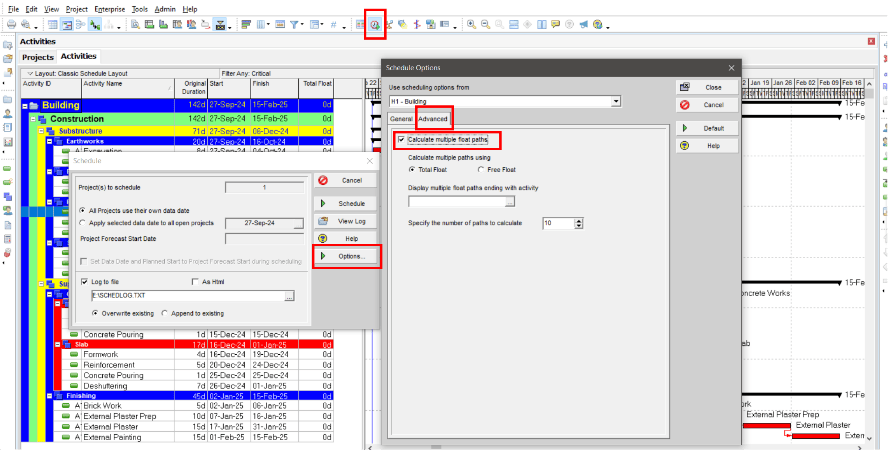
To identify multiple critical paths in Primavera P6:
Click on “Schedule” from the Layout Toolbar.
Select “Options” from the new window that appears.
Select Advanced and check the box “Calculate multiple float paths.”
2. Same Critical Path with Different Critical Branches
Critical branches are activities that run at the same time and can affect the entire project completion date. The critical path can have multiple critical branches. For example, in a construction project, plumbing and electrical can work in parallel, but they need to be finished before wall painting; any delay in any branch can delay project completion.
3. Near-Critical Activities
Activities that have few days as total float are called near critical activities, which means they are almost critical. If these activities happen to be delayed, they could be critical and impact the project completion date. The project team needs to monitor these activities closely to make sure they do not turn into critical activities unexpectedly.
To identify near-critical activities in Primavera P6:
Select “Filter by” from the Layout Toolbar.
Add a new filter.
Set the new filter to show activities with a total float time less than or equal to a certain threshold.

Challenges of Having Multiple Critical Paths
Having more than one critical path in a construction project makes it harder for the project team to manage the project, as it requires significant supervision and monitoring because any delay in any of these paths will lead to project delay.
So, it is not recommended to have multiple critical paths. Project teams usually try to avoid that, as your projects get risky since it has more areas in which delays might turn into more serious issues.
Before analyzing the critical path, you need to know how to create a CPM schedule in Primavera P6 using proper scheduling logic.
Conclusion
In construction, some activities affect the finish date more than others. The critical path identifies those activities, and the near-critical ones, so the team knows where to focus.
While most projects have one critical path, other projects with more complexity could have multiple critical paths or various critical branches, which need closer monitoring and flexible resource management to keep the project on time and within budget. Professional CPM scheduling services can support this process by providing accurate analysis and effective timeline control.
Want a scheduler to handle it for you?
Send your specs or schedule file and get a flat-fee quote within 24 hours from a PSP®-certified scheduler. Learn more about our CPM scheduling services.
Get My Flat-Fee Quote or call (833) 777-6276